
Windows Server roles and features: deciding what the server is for
What Windows Server roles, role services and features are, and how Server Core differs.
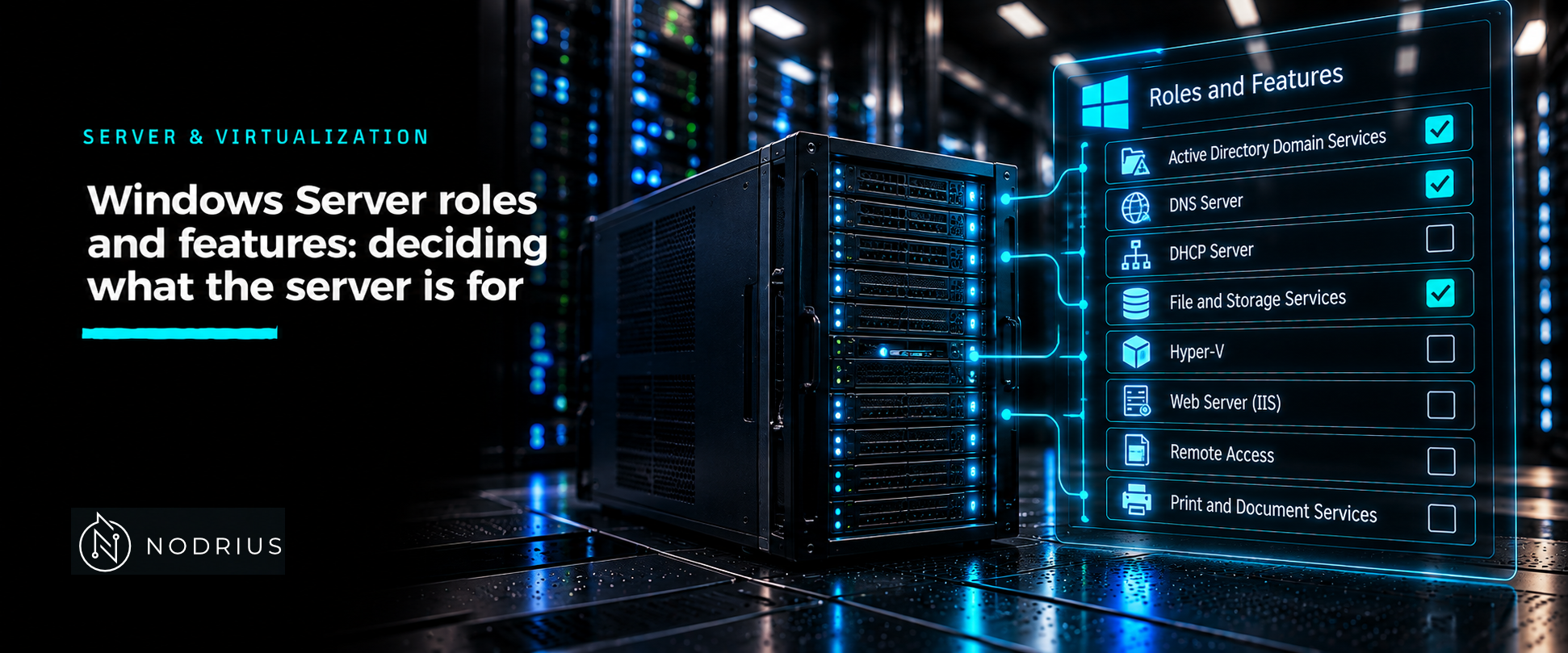
A Windows Server is not a finished product with everything switched on. It is a base operating system plus the roles, role services and features that someone installs on it. A role is a major server function — DNS Server, DHCP Server, Web Server (IIS), Hyper-V; a role service is one component inside a role; a feature is a supporting function that is not a role in its own right. Deciding what a server is for is deciding which of these to install, and which to leave out.
The model: available is not installed
Windows Server ships with most capabilities available and almost none installed. Get-WindowsFeature reports both, so the right question is never “can this server do DNS?” but “is the DNS Server role installed?”. Everything else on this sheet follows from that split: installing adds binaries, services and files; uninstalling removes them again.
The vocabulary is layered, and the layers nest:
| Layer | Example | PowerShell name |
|---|---|---|
| Role | DNS Server | DNS |
| Role service | Web Server (IIS) → Management Tools | Web-Mgmt-Tools |
| Feature | .NET Framework 3.5 Features | NET-Framework-Features |
A role pulls in the role services it needs; a feature can be independent of any role. Microsoft publishes the exact names: the Server Core image lists its roles — AD-Certificate, DNS, DHCP, Hyper-V, Web-Server, UpdateServices and others — and every one is marked not installed by default except File and Storage Services.
Installing and removing with PowerShell
The ServerManager module is the command-line equivalent of Server Manager’s Add Roles and Features Wizard. It exposes three cmdlets — Get-WindowsFeature, Install-WindowsFeature and Uninstall-WindowsFeature — and the same three work against the local server, a remote server (-ComputerName, -Credential) or an offline VHD (-Vhd).
# what is available, and what is installed
Get-WindowsFeature -Name Web-*

# install a role; management tools are NOT included unless asked
Install-WindowsFeature -Name Web-Server -IncludeAllSubFeature -IncludeManagementTools

# a dry run of the same command
Install-WindowsFeature -Name Web-Server -WhatIf

# confirm the state afterwards
Get-WindowsFeature | Where-Object Installed

# remove it again; the payload stays in the side-by-side store unless you add -Remove
Uninstall-WindowsFeature -Name Web-Server -IncludeManagementTools
Two defaults catch people out. First, Install-WindowsFeature does not install management tools unless you add -IncludeManagementTools: the wizard installs them by default, the cmdlet does not. Second, uninstalling a role leaves the feature files in the side-by-side store (%SystemDrive%:\Windows\WinSxS) unless you pass -Remove, after which an external source (-Source) is needed to put it back. The cmdlet requires an elevated session, and returns an object whose fields include Success, Restart Needed, Exit Code and Feature Result.
Server Core and Desktop Experience
The installation option decides which half of the model is even reachable. Server with Desktop Experience has the graphical shell and every role and feature; Server Core does not install the shell packages at all, so there is no Server Manager and no services.msc. On Server Core you install roles locally with PowerShell, or manage the machine remotely with RSAT or Windows Admin Center.
That has a concrete consequence for roles. Some roles and role services do not exist in the Server Core image — Remote Desktop Session Host, Remote Desktop Gateway, the IIS Management Console, Fax Server — and Install-WindowsFeature cannot add what the image does not carry. Adding -IncludeManagementTools on Server Core installs only the command-line and PowerShell management tools, never the GUI snap-ins. The two options cannot be converted into one another after installation; the choice is made at setup and changed only by a clean installation. Server Core needs less disk and Microsoft documents its attack surface as greatly reduced — which is the same argument as the one for installing fewer roles.
Verifying what is actually installed
There is no single “is this server healthy” command, but there is a single source of truth for what the server is for:
Get-WindowsFeature | Where-Object Installed
Get-WindowsFeature -Name DNS | Select-Object Name, InstallState
InstallState distinguishes a feature that is Installed from one whose payload has been Removed and now needs an external file source. To audit another server without signing in to it, add -ComputerName.
Limits and the common error
Every installed role widens the surface and consumes resources. A role is not a checkbox in a document: it adds binaries, services, listening ports and background work that must be patched and monitored. Microsoft’s guidance is explicit — install only the roles you need, to reduce the overall footprint — and the wizard warns when a selection conflicts with something already on the destination server.
The common error follows from that: installing a broad set of roles “in case they are needed” and never removing them. The mirror error is assuming Server Manager and Install-WindowsFeature behave identically; they differ precisely on management tools, which the cmdlet omits by default. A third trap is prerequisites: a role or feature can need installation media, or a server that has a static address before the role is of any use, and the install will not solve that for you.
Level and prerequisites. L2 — operational: understand the role, role-service and feature model, install and remove, and verify state. Prerequisites: the L1 material on what a server operating system is and how it boots, which this sheet does not re-derive. Role-specific configuration — DNS zones, DHCP scopes, IIS sites — belongs to its own sheet.
Where to go next
- Server & Virtualization — the area this sheet belongs to.
- Operating systems — the node this sheet sits in.
- Platform foundations — what the server is before it has a role.
References
- Microsoft Learn — Install-WindowsFeature (ServerManager) — https://learn.microsoft.com/en-us/powershell/module/servermanager/install-windowsfeature
- Microsoft Learn — Get-WindowsFeature (ServerManager) — https://learn.microsoft.com/en-us/powershell/module/servermanager/get-windowsfeature
- Microsoft Learn — Uninstall-WindowsFeature (ServerManager) — https://learn.microsoft.com/en-us/powershell/module/servermanager/uninstall-windowsfeature
- Microsoft Learn — Add or remove roles and features in Windows Server — https://learn.microsoft.com/en-us/windows-server/administration/server-manager/add-remove-roles-features
- Microsoft Learn — Server Core vs Server with Desktop Experience install options — https://learn.microsoft.com/en-us/windows-server/get-started/install-options-server-core-desktop-experience
- Microsoft Learn — What is Server Core? — https://learn.microsoft.com/en-us/windows-server/administration/server-core/what-is-server-core
- Microsoft Learn — Roles, Role Services, and Features included in Windows Server - Server Core — https://learn.microsoft.com/en-us/windows-server/administration/server-core/server-core-roles-and-services
- Microsoft Learn — Roles, Role Services, and Features not in Windows Server - Server Core — https://learn.microsoft.com/en-us/windows-server/administration/server-core/server-core-removed-roles